
Configure redirects
Use Fast-Https v1.5.0 to configure two redirects. First send /api1 to the home page on the same site. Then redirect HTTP requests to HTTPS.
1 What a redirect is
A redirect sends the browser from one URL to another. The server can tell the browser where to go in an HTTP response, and a page can also trigger a redirect in the browser using a script. This tutorial uses a server-side 301 Moved Permanently response. The status code indicates a permanent move. The browser makes a new request to the URL in the Location response header.
Use redirects in situations like these.
- Change domains. When a site moves to a new domain, redirect each page on the old domain to its counterpart on the new domain.
- Reorganise a site. After a redesign, map old URLs to their new sections or pages. For example, redirect
/help/installto/docs/install. - Move a single page. If an article or product page moves to a new address, a redirect lets people using the old address find it.
- Handle broken links. If a retired page has a suitable replacement, redirect visitors who follow the old link to that page.
- Unify site entry points. When the
wwwand non-wwwdomains serve the same content, pick a preferred domain and redirect the other one to it. - Support search engine optimisation (SEO). Map old URLs to new ones before a migration, then use
301redirects for permanent moves to help search engines identify the new addresses.
2 Why redirects help
- Consolidate search signals. Search engines can use permanent redirects to identify the preferred URL and consolidate signals such as links to the old URL.
- Help visitors find the right page. After a URL changes, browsers can take visitors directly to the replacement so they can find the same content.
- Keep existing references useful. As long as the old URL still redirects, bookmarks, links from other sites, and shared URLs can still reach the content.
- Choose a preferred URL for duplicate pages. When several URLs serve the same content, redirect addresses you plan to retire to the URL you want to keep. This helps search engines identify the preferred URL.
- Simplify maintenance. Keep the content on one page and use the old URLs as redirects. Future edits go to a single page.
See the Google Search documentation on redirects and choosing a preferred URL.
3 Redirect configuration
The Linux commands use Ubuntu as an example. Download fast-https_Linux_x86_64.tar.gz and extract it into a new test directory. Check that the directory contains fast-https, config/fast-https.json, and httpdoc/root/index.html. Make sure port 7000 is available. Fast-Https v1.5.0 release
On Windows, open your WSL Ubuntu workspace in VS Code. Download the same Linux release archive and run the tutorial commands in the integrated terminal. Use the same WSL distribution in the terminal running the server and the terminal running curl. Use WSL in VS Code
The native Windows release uses the same JSON configuration. Run monitor.exe from the extracted directory and use Start and Stop in the tray menu. In PowerShell, use curl.exe to inspect HTTP responses.
3.1 Configure the test site
Open config/fast-https.json in the test directory with a text editor. Replace the entire file with this JSON and save it.
{
  "http": {
    "server": [
      {
        "listen": 7000,
        "server_name": "localhost",
        "location": [
          {
            "url": "/api1",
            "type": "rewrite",
            "rewrite": "http://127.0.0.1:7000/index.html"
          },
          {
            "url": "/",
            "type": "local",
            "root": "./httpdoc/root",
            "index": ["index.html"]
          }
        ]
      }
    ]
  }
}
| Field | Purpose |
|---|---|
listen | Port on which the service listens, 7000 in this example. |
server_name | Hostname configured for the site, localhost in this example. |
url | Request path matching rule. It supports regular expressions. This example matches /api1. |
type | Set to rewrite to return a 301 redirect. |
rewrite | Fixed destination written to the Location response header. It can be a full URL on this site or another domain. |
The first location redirects /api1 to http://127.0.0.1:7000/index.html. The second serves index.html from ./httpdoc/root.
3.2 Start and verify
From the test directory, start Fast-Https in the foreground. The start command validates the configuration before listening on any ports.
FASTHTTPS_FOREGROUND=1 ./fast-https start
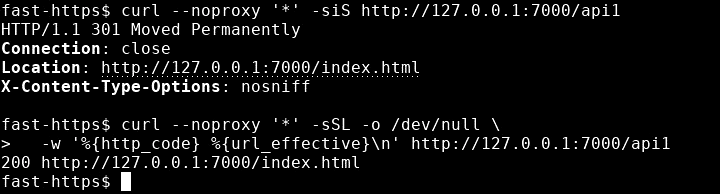
When you see Listen 0.0.0.0:7000, leave Fast-Https running. Open a second terminal and request /api1 to see the initial response.
curl --noproxy '*' -siS http://127.0.0.1:7000/api1
The response includes 301 and the redirect URL.
HTTP/1.1 301 Moved Permanently
Connection: close
Location: http://127.0.0.1:7000/index.html
X-Content-Type-Options: nosniff
Use -L to follow the redirect and see the final status code and URL. The block below contains one command.
curl --noproxy '*' -sSL -o /dev/null \
  -w '%{http_code} %{url_effective}\n' http://127.0.0.1:7000/api1
The final response is 200 at the redirect URL.
200 http://127.0.0.1:7000/index.html
When you finish, use the terminal where you ran curl to stop Fast-Https from the test directory.
./fast-https stop
4 Redirect HTTP to HTTPS
Extract the same Fast-Https v1.5.0 release archive into a new empty directory. This example receives HTTP requests on port 17080 and serves the home page over HTTPS on port 17443.
4.1 Configure the HTTP and HTTPS sites
Replace the entire config/fast-https.json file in the new directory with the following configuration.
{
  "http": {
    "server": [
      {
        "listen": 17080,
        "server_name": "localhost",
        "location": [
          {
            "url": "/",
            "type": "rewrite",
            "rewrite": "https://localhost:17443/"
          }
        ]
      },
      {
        "listen": "17443 ssl",
        "server_name": "localhost",
        "ssl_certificate": "config/cert/localhost.pem",
        "ssl_certificate_key": "config/cert/localhost-key.pem",
        "location": [
          {
            "url": "/",
            "type": "local",
            "root": "./httpdoc/root",
            "index": ["index.html"]
          }
        ]
      }
    ]
  }
}
The first server redirects HTTP requests to the fixed URL https://localhost:17443/. The second enables TLS on port 17443. The ssl_certificate and ssl_certificate_key fields point to the site certificate and private key. The root and index fields specify the HTTPS site’s file directory and home page filename.
4.2 Start the server and verify the redirect
Start Fast-Https from the new test directory. The first start generates the localhost site certificate, its private key, and the local root certificate httpdoc/root/root.crt for verification.
FASTHTTPS_FOREGROUND=1 ./fast-https start
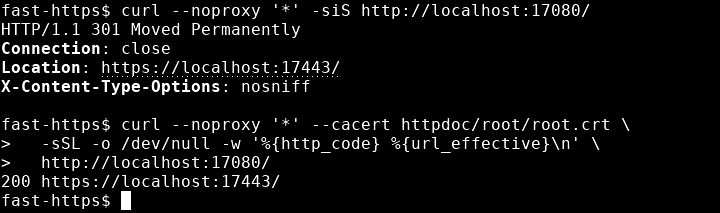
When you see Listen 0.0.0.0:17080 and Listen 0.0.0.0:17443, leave the server running. Open another terminal in the same test directory and check the HTTP response.
curl --noproxy '*' -siS http://localhost:17080/
HTTP/1.1 301 Moved Permanently
Connection: close
Location: https://localhost:17443/
X-Content-Type-Options: nosniff
Use -L to follow the redirect and --cacert to use the CA certificate generated in the test directory. The block below contains one command.
curl --noproxy '*' --cacert httpdoc/root/root.crt \
  -sSL -o /dev/null -w '%{http_code} %{url_effective}\n' \
  http://localhost:17080/
After certificate verification succeeds, the final HTTPS page returns 200.
200 https://localhost:17443/
Stop the test server from the terminal used for verification.
./fast-https stop
4.3 Use the configuration in production
For standard ports, set listen to 80 and "443 ssl" on the two sites and set both server_name values to your domain. Set rewrite to its HTTPS URL, such as https://example.com/. Point ssl_certificate and ssl_certificate_key to a certificate trusted by clients for your domain and its matching private key.