
Serve a site over HTTPS
This tutorial uses Fast-Https to serve a local test site, download its root certificate, and verify an HTTPS connection. On Windows, use the tray menu and the certificate import wizard. On Linux, start the server and verify the connection from the terminal.
1 What HTTP and HTTPS are
HTTP (Hypertext Transfer Protocol) is the foundation for transferring and sharing information on the World Wide Web. A browser sends an HTTP request for a page, and the server returns the page or other data in an HTTP response. With plain HTTP, a third party can read or modify data in transit.
HTTPS (Hypertext Transfer Protocol Secure) carries HTTP over a TLS connection to protect data travelling between the browser and server. E-commerce, online banking, instant messaging, video calls, file transfers, and cloud storage all rely on protection for user information.
1.1 TLS encryption and certificates
TLS (Transport Layer Security) succeeded SSL (Secure Sockets Layer), which is why a site certificate is often called an SSL certificate. When connecting, the browser checks that the server’s certificate is valid for the requested hostname, is within its validity period, and chains to a trusted certificate authority (CA). TLS then protects subsequent traffic from eavesdropping and lets the recipient detect tampering. HTTP specification · TLS specification
| Detail | HTTP | HTTPS |
|---|---|---|
| URL scheme | http:// | https:// |
| Default port | 80 | 443 |
| Transport protection | Traffic can be read or modified in transit | TLS provides encryption, server authentication, and integrity protection |
A site can use another port. Include the port in the URL when it differs from the default, as in https://localhost:18443/.
1.2 Why sites migrate to HTTPS
- Search and page experience. Google announced HTTPS as a lightweight ranking signal and includes HTTPS in its page experience guidance. Ranking also depends on factors such as the relevance of the content to the query. Google Search HTTPS announcement · Page experience guidance
- Browser warnings. Chrome 56 began marking HTTP pages that collect passwords or credit card details as not secure. Firefox also warns users when a login form uses an unencrypted connection. Chrome announcement · Firefox announcement
- Transactions and information exchange. Before submitting personal details or a payment, visitors can check the site’s connection status in the browser.
- HTTP/2 support. HTTP/2 can carry several requests and responses at once on a single connection, reducing the need for extra parallel connections. Performance depends on the page and network conditions. Browsers can negotiate HTTP/2 during the TLS handshake when connecting to an HTTPS site. HTTP/2 specification
1.3 Benefits of serving a site over HTTPS
- Encryption. Protects usernames, passwords, payment details, and other sensitive data from being read in transit.
- Server authentication. The browser checks the certificate against the hostname, reducing the risk of a third party impersonating the site along the network path. Check the hostname in the address bar to recognise phishing pages that use similar domains.
- Data integrity. The recipient can detect when content has been altered in transit.
- Visible connection status. Browsers show connection information near the address bar, where users can check it before signing in, shopping, or exchanging sensitive information. Chrome’s site information icon
- Search engine optimisation (SEO). Using a consistent HTTPS entry point with redirects helps search engines identify the URL to use after a migration. Google Search guidance on redirects
- Personal data protection. Article 32 of the GDPR lists encryption among the security measures that can be used depending on risk. HTTPS helps protect personal data in transit. GDPR Article 32
- Reduced risk of content hijacking. Protecting the connection reduces the risk that an intermediary replaces a page or injects adverts or malicious scripts into the response.
- Modern web deployment. HTTPS is a common way to provide an encrypted connection and can be the default for new sites.
2 Configure local HTTPS
Choose the archive for your operating system from the Fast-Https v1.5.0 release page. For Windows x86_64, download fast-https_Windows_x86_64.zip. For Linux x86_64, download fast-https_Linux_x86_64.tar.gz. Extract the archive to a new writable directory. The Windows directory contains monitor.exe, fast-https.exe, config, and httpdoc. The Linux directory contains fast-https, config, and httpdoc. Fast-Https v1.5.0 release
This configuration serves the same test home page on two ports. Use HTTP to download the root certificate and HTTPS to verify the encrypted connection. Check that both test ports are available.
| Operating system | HTTP home page | HTTPS home page |
|---|---|---|
| Windows | http://localhost:8080/ | https://localhost/ |
| Linux | http://localhost:18080/ | https://localhost:18443/ |
Open config/fast-https.json in the extracted directory and replace the entire file with the JSON below. The example uses the Linux ports. On Windows, change 18080 to 8080 and "18443 ssl" to "443 ssl". Save the file when you finish editing.
{
  "http": {
    "server": [
      {
        "listen": 18080,
        "server_name": "localhost",
        "location": [
          {
            "url": "/",
            "type": "local",
            "root": "./httpdoc/root",
            "index": ["index.html"]
          }
        ]
      },
      {
        "listen": "18443 ssl",
        "server_name": "localhost",
        "ssl_certificate": "config/cert/localhost.pem",
        "ssl_certificate_key": "config/cert/localhost-key.pem",
        "location": [
          {
            "url": "/",
            "type": "local",
            "root": "./httpdoc/root",
            "index": ["index.html"]
          }
        ]
      }
    ]
  }
}
On first start, Fast-Https generates the local root certificate at httpdoc/root/root.crt, along with a site certificate and private key for localhost. The server uses the site certificate and private key. Browsers and curl can use the root certificate to verify the site certificate.
3 Start and verify on Windows
3.1 Start Fast-Https
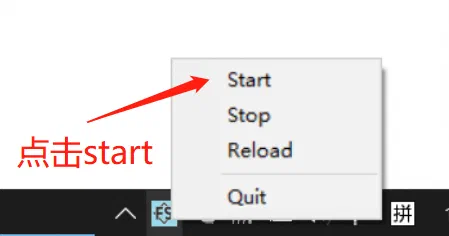
Run monitor.exe in the extracted directory. In the Windows notification area, right-click the Fast-Https icon and choose Start.
3.2 Download the root certificate
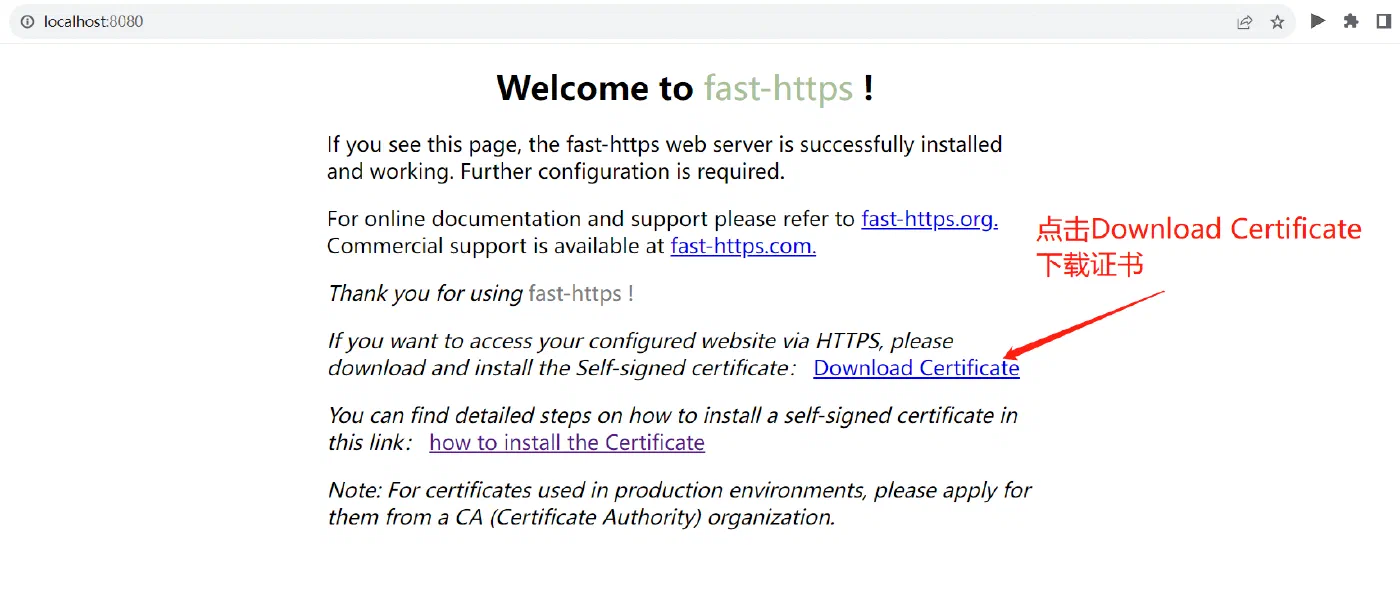
Open http://localhost:8080/ in your browser. On the Fast-Https welcome page, click Download Certificate and save root.crt to your downloads folder.
3.3 Import the root certificate for the current user
Open
root.crtfrom your downloads folder and choose Install Certificate.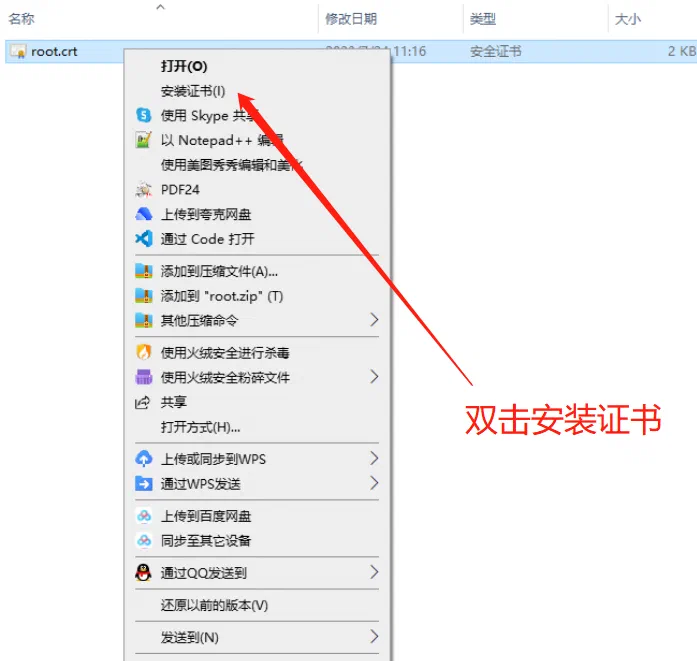
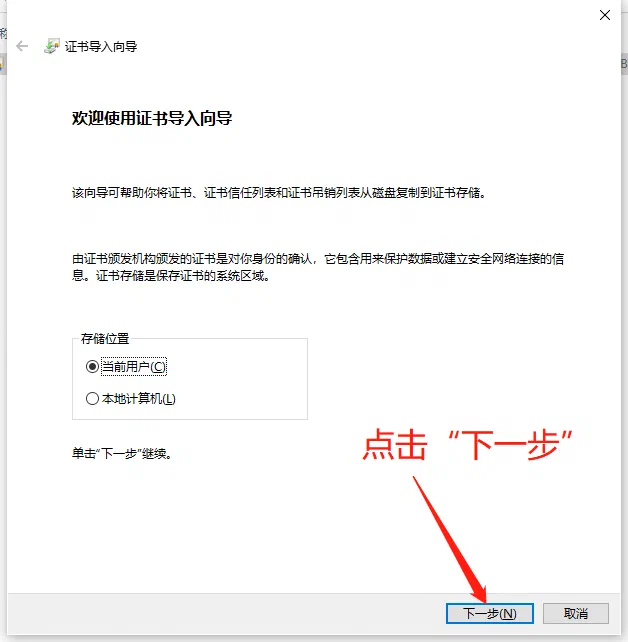
Choose Current User in the Certificate Import Wizard and click Next.
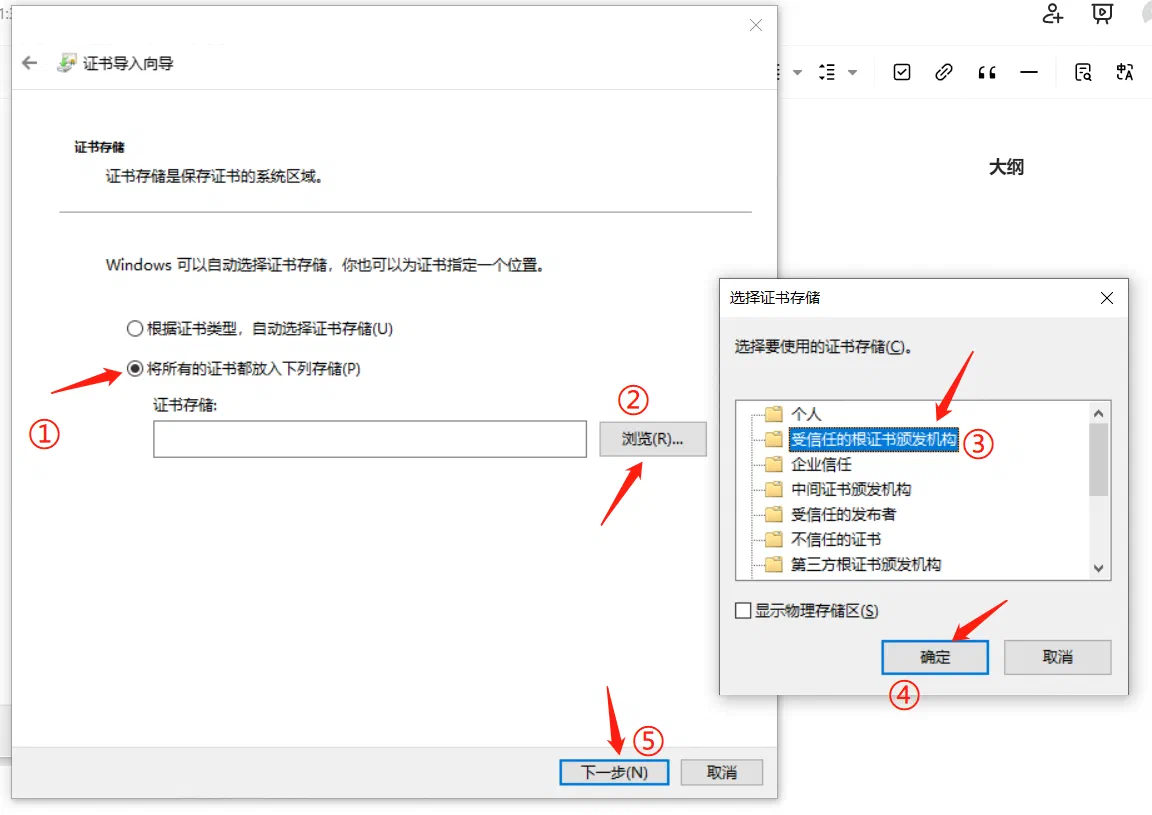
Select Place all certificates in the following store. Click Browse, select Trusted Root Certification Authorities, then click OK and Next.
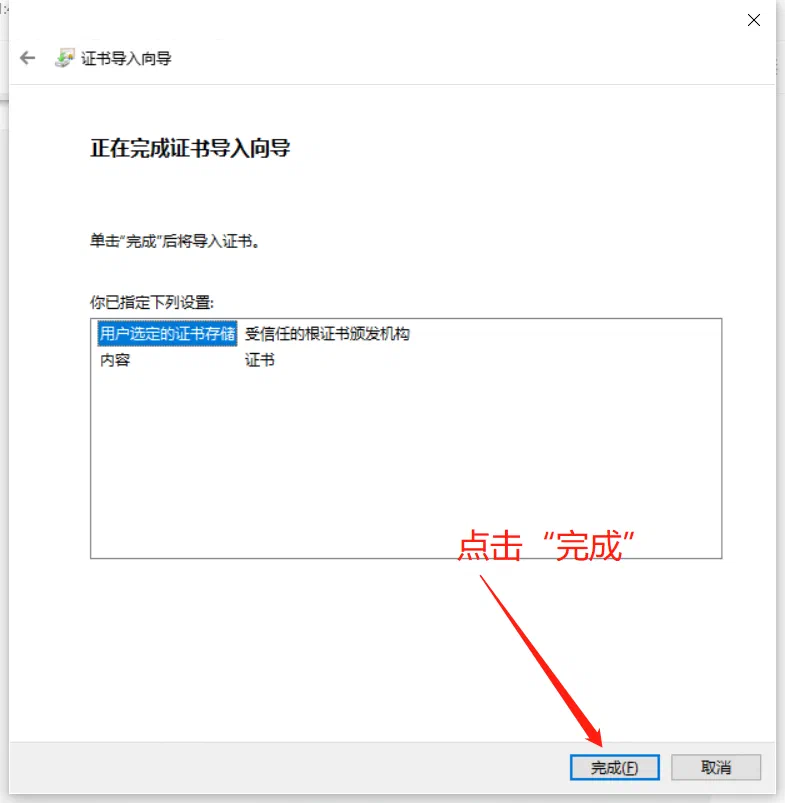
Check the certificate store on the confirmation page and click Finish.
If a security warning appears, check that the file is the
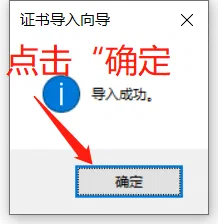
root.crtyou just downloaded from the local test server, then click Yes. When the wizard reports a successful import, click OK.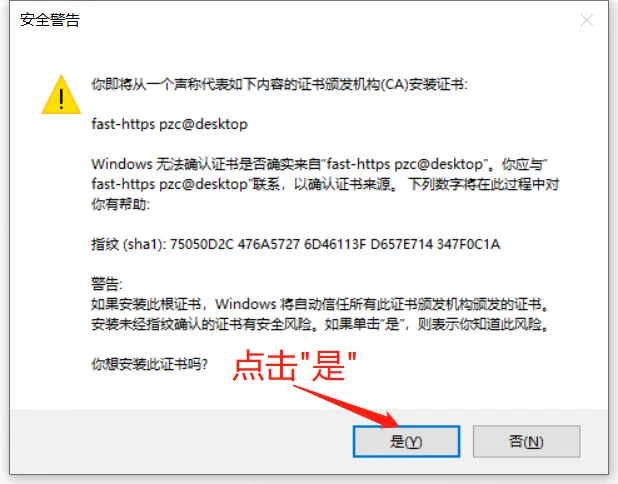
3.4 Test the result
Open https://localhost/ in your browser. Open site information to the left of the address and check that the connection is secure. The screenshot shows the connection status after the certificate is trusted (the sample site is for testing only). With the home page from the release archive, you will see the Fast-Https welcome page.
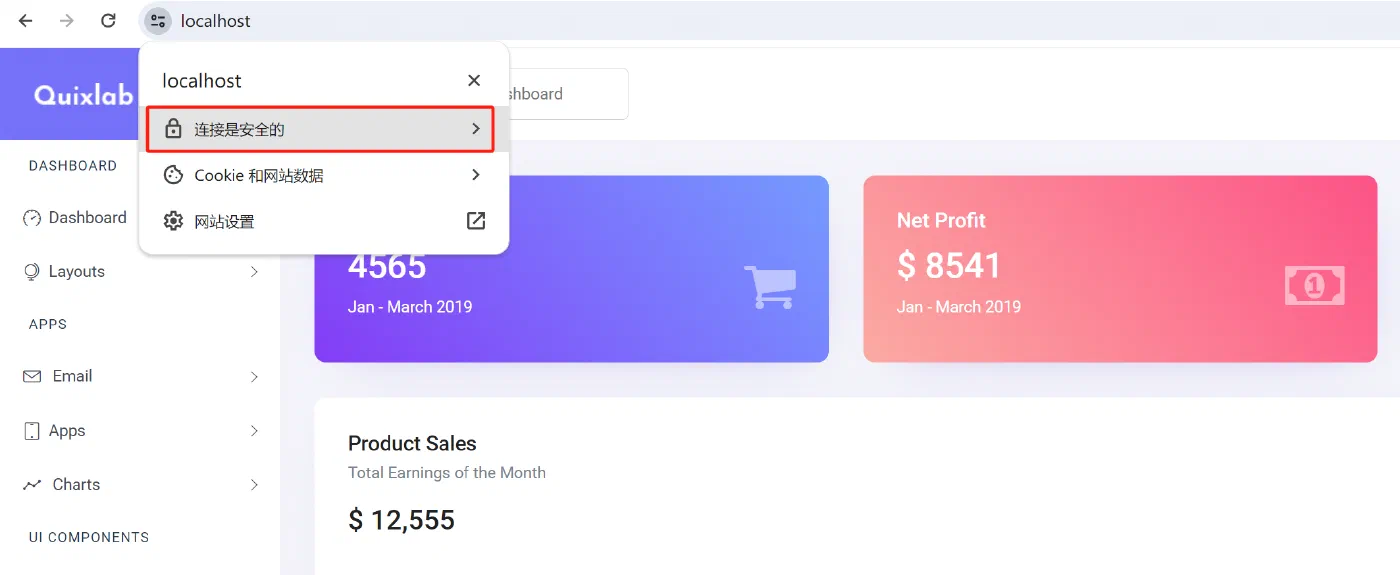
When finished, select Stop from the tray menu to stop the service.
4 Start and verify on Linux
The commands use Ubuntu as an example. Have curl available and change to the extracted directory that contains fast-https.
4.1 Start Fast-Https
Start the service in the foreground in your first terminal.
FASTHTTPS_FOREGROUND=1 ./fast-https start
When the logs show the server listening on 18080 and 18443, leave it running. Open a second terminal and change to the same extracted directory.
4.2 Download the root certificate
Download the root certificate from the HTTP test site and save it as test-root.crt in the current directory. The two lines below form a single command.
curl --noproxy '*' -fsS -o test-root.crt \
  -w 'CA download %{http_code}\n' http://localhost:18080/root.crt
CA download 200 confirms the download succeeded.

4.3 Verify HTTPS
Pass the downloaded root certificate to --cacert to verify the site certificate and request the HTTPS home page.
curl --noproxy '*' --cacert test-root.crt -fsS -o /dev/null \
  -w 'HTTP %{http_code}\nTLS verify %{ssl_verify_result}\n' https://localhost:18443/
HTTP 200 confirms the home page loaded, and TLS verify 0 confirms that certificate verification succeeded. The root certificate specified by --cacert applies to this curl request.

4.4 View the test site in a browser
To see the result in a browser, import the local test-root.crt into the trusted root certificate store used by that browser. In Chromium, open chrome://settings/certificates to access certificate management. Chromium certificate management
Open https://localhost:18443/ and select site information to the left of the address. In the screenshot, Chromium reports Connection is secure and Certificate is valid next to the Fast-Https welcome page.
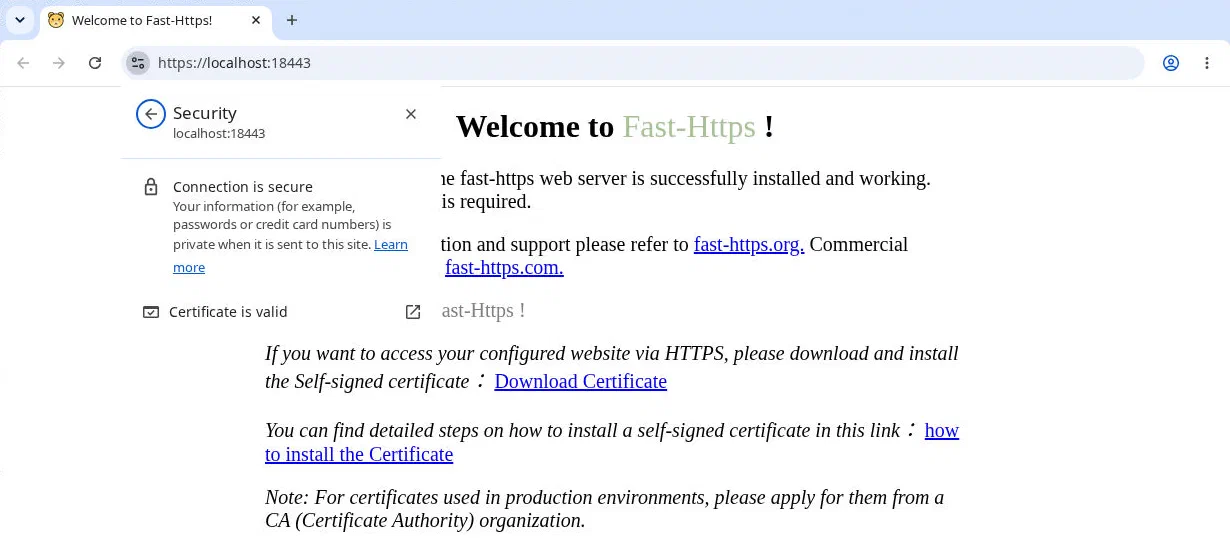
When you finish, stop the service from the second terminal.
./fast-https stop
5 Use the configuration in production
Set server_name to your site’s hostname. Point ssl_certificate and ssl_certificate_key to a certificate trusted by clients and valid for that hostname, and to its matching private key. To use the default HTTPS port, set the HTTPS site’s listen to "443 ssl".
- To send visitors from HTTP to HTTPS, see Configure redirects.
- For more about the site configuration format, see Basic configuration.